
Surcharging Fees in Pinch
How to pass payment processing fees on to your customers using the surcharge feature.
Platforms can pass processing fees onto your customers by setting the surcharge property when creating a Payment. Before enabling surcharging, make sure it complies with any laws applicable to your business. If you are unsure, consult your legal counsel.
Endpoints that support surcharging
The following endpoints accept a surcharge property:
- POST /payments — Create or update a scheduled Payment
- POST /payments/realtime — Create a realtime Payment
- GET /fees/calculate — Preview the fee amount before charging
How to use it
Set surcharge to an array containing one or both of the accepted values: "bank-account" and/or "credit-card".
{
  "payerId": "pyr_abc123",
  "amount": 10000,
  "description": "Invoice #456",
  "transactionDate": "2026-08-01",
  "surcharge": ["credit-card", "bank-account"]
}
Passing both values means the surcharge is applied regardless of which payment method the Payer uses. This is useful when you schedule a Payment in advance but the Payer might switch payment methods before it processes.
How the surcharge is calculated
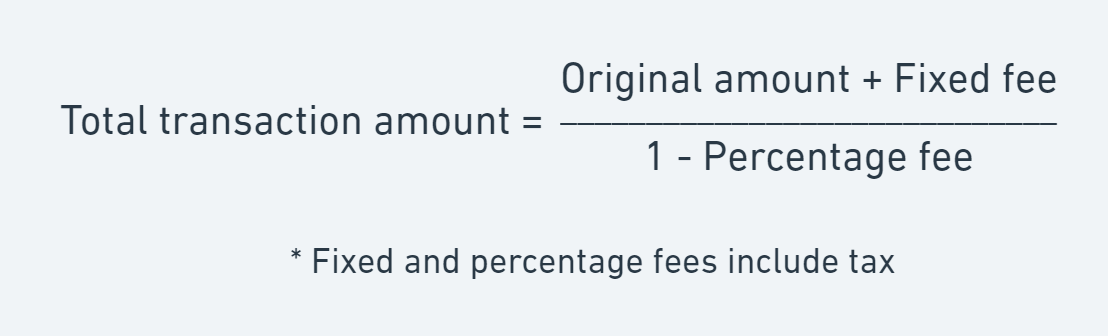
Preview fees before charging
Use the Calculate Fees endpoint to see the exact surcharge amount before creating a Payment:
GET https://api.getpinch.com.au/test/fees/calculate?amount=10000&sourceType=credit-card&surcharge=true
Authorization: ******
pinch-version: 2020.1{
"amount": 10000,
"fee": 220,
"total": 10220
}Surcharge Supported Regions Reference:
All source types supported:
- New Zealand
- United States
- Canada
All source types unsupported:
- Australia (From 01/10/26)
Surcharging rules in Australia: Pinch, in line with the RBAs October 1st guidelines has removed surcharging across all payment types via the API. This only applies to Australian platforms/merchants and the API will return a failure if a payment is attempted with surcharging enabled. Consult your financial adviser if you are unsure whether surcharging applies to your business. Non-AU businesses can utilise this feature in accordance with their local surcharging legislation.
Updated 21 days ago